
A figure caption in Microsoft Word is a short description placed under an image, chart, diagram, or illustration that explains what the visual represents.
It helps readers understand the context of the figure and is widely used in academic papers, business reports, research documents, and professional writing.
In Microsoft Word, captions can be added manually or more effectively using the built-in caption tool that automatically numbers figures and keeps everything organized.
In 2026, Word’s caption system is even more useful because it supports automatic updates, cross-referencing, and creating a list of figures with one click.
This guide explains how to add figure captions in Word step by step, along with formatting tips, common mistakes, and professional best practices.
What Is a Figure Caption in Word
- 🖼️ A short description under an image or diagram
- 📄 Explains what the figure shows
- 🔢 Often includes automatic numbering (Figure 1, Figure 2)
- 📚 Used in academic and professional documents
- 🎯 Helps readers understand visuals quickly
- 🧠 Adds clarity to complex information
- 📊 Common in reports and research papers
- 📌 Placed directly below the figure
- ✏️ Can be edited anytime
- 🔍 Improves document structure
- 💡 Supports referencing in text
- 📑 Works with Word’s reference tools
- 📈 Enhances readability
- 🖨️ Important for print documents
- 📁 Keeps visuals organized
- 🚀 Saves formatting time
- 🧾 Standard academic requirement
- 🧩 Linked with the figure numbering system
- 📖 Helps navigation in long documents
- 🌟 Improves professional presentation
- 📎 Can be updated automatically
How to Add a Figure Caption in Word (Built-in Method)
- 📄 Insert your image into Word
- 🖱️ Click once on the image to select it
- 📌 Go to the References tab in the top menu
- 🏷️ Click Insert Caption
- ✏️ Type your caption text in the box
- 🔢 Choose label as Figure (default option)
- 📍 Set the position to the selected item
- ✅ Click OK to apply
- 📊 Word automatically numbers the figure
- 🔄 Captions update if figures are added or removed
- 📚 Keeps numbering consistent throughout the document
- 🎯 Ideal for long reports and assignments
- 🧠 Reduces manual formatting errors
- 📑 Works with academic standards
- 📌 Supports structured documentation
- 🚀 Saves time in editing
- 💡 Ensures professional formatting
- 📁 Easy to manage multiple figures
- 🔍 Improves document clarity
- 🖨️ Ready for printing or PDF export
- 🌟 Recommended method by Microsoft
In What Way to Add a Figure Caption Manually
- 🖼️ Click below the image in your document
- ⌨️ Type caption text manually
- 🏷️ Example: Figure 1: Sales Growth Chart
- 📏 Adjust font and alignment if needed
- ⚠️ No automatic numbering system
- ❌ Requires manual updates
- 📉 Not suitable for large documents
- 🧾 No built-in referencing support
- 🔄 Must be changed one by one
- 📚 Easy to make mistakes
- 🧠 Not ideal for academic work
- 💡 Only useful for simple files
- 📊 No list of figures support
- 🚫 Can cause formatting inconsistencies
- 📎 Lacks cross-reference functionality
- 📖 Hard to maintain in long reports
- 🎯 Not recommended for professional writing
- 🖨️ Risk of layout errors in print
- 🔧 Requires extra manual effort
- 📁 Best for quick drafts
- ✨ Simple but limited option
How to Format Figure Captions Professionally
- 🎨 Use consistent font style (e.g., Calibri or Times New Roman)
- 📏 Keep font size smaller than headings
- 📌 Align captions below images consistently
- 🔢 Use automatic numbering for accuracy
- 🧠 Keep captions short and clear
- 📚 Follow academic formatting rules
- 💡 Use sentence case or title case consistently
- 📊 Maintain uniform spacing across figures
- 🖼️ Keep captions close to images
- 📑 Use Word Styles for consistency
- 🔍 Ensure readability in print and screen
- 🎯 Avoid overly long descriptions
- 📎 Keep formatting identical for all figures
- 🚀 Use built-in styles for automation
- 🧾 Maintain professional structure
- 📁 Organize figures logically
- 🌟 Stick to one caption format throughout
- 🖨️ Check print preview before finalizing
- 💬 Avoid unnecessary symbols or clutter
- ✨ Keep the document clean and readable
In What Way To Automatically Number Figures in Word
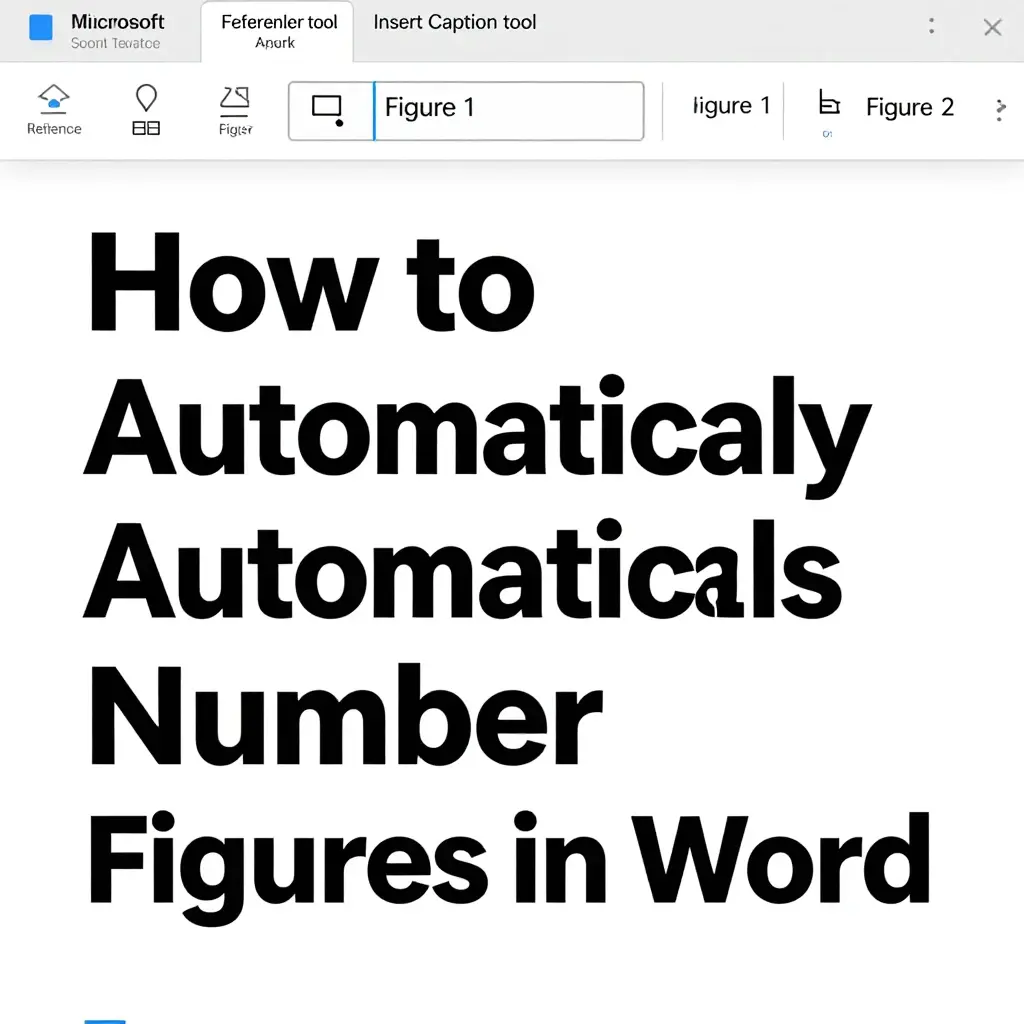
- 📄 Insert caption using the References tab
- 🔢 Word assigns Figure numbers automatically
- 📊 Numbers update when figures are added
- 🔄 Renumbering happens instantly
- 📚 Keeps sequence consistent
- 🧠 Prevents manual errors
- 📑 Supports large documents
- 🎯 Works with cross-referencing
- 📌 Ideal for academic writing
- 🚀 Saves editing time
- 💡 Ensures accuracy in reporting
- 🧾 Maintains structure automatically
- 📁 Handles multiple figures easily
- 🔍 Keeps numbering aligned
- 📖 Supports professional formatting
- 🌟 Used in research papers
- 🖼️ Works with images and charts
- 🎬 Useful in technical documents
- 💬 Prevents confusion in references
- ✨ Highly recommended method
How to Create a List of Figures in Word
- 📄 Place the cursor where list should appear
- 🧭 Go to References tab
- 📑 Click Insert Table of Figures
- 🏷️ Choose caption label (Figure)
- ⚙️ Select formatting style
- ✅ Click OK to generate list
- 📊 Word creates an automatic figure list
- 🔢 Includes figure numbers and titles
- 🔄 Updates automatically when captions change
- 📚 Useful for thesis and reports
- 🧠 Improves document navigation
- 🎯 Required in academic submissions
- 📁 Organizes visuals clearly
- 💡 Enhances readability
- 🚀 Saves manual effort
- 📖 Creates professional structure
- 📎 Clickable entries in digital format
- 🌟 Standard research feature
- 🖨️ Print-ready formatting
- 🧾 Keeps document organized
- ✨ Improves overall presentation
Common Mistakes When Adding Captions
- ❌ Using manual captions in long documents
- ❌ Forgetting to use the References tab
- ❌ Incorrect figure numbering
- ❌ Missing caption updates
- ❌ Inconsistent formatting styles
- ❌ Poor alignment under images
- ❌ Overly long caption text
- ❌ Not updating fields after edits
- ❌ Mixing manual and automatic captions
- ❌ Wrong label selection
- ❌ Ignoring Word styles
- ❌ Not checking print layout
- ❌ Broken cross-references
- ❌ Skipping figure numbering system
- ❌ Using different font styles
- ❌ Poor spacing between image and caption
- ❌ Missing captions in the list of figures
- ❌ Not refreshing document fields
- ❌ Overcomplicating formatting
- ❌ Lack of consistency throughout the document
Tips for Better Figure Captions
- ✨ Keep captions short and descriptive
- 🎯 Use consistent formatting throughout the document
- 📊 Always use automatic numbering
- 🧠 Make captions easy to understand
- 📌 Place captions directly below figures
- 💡 Use clear and simple language
- 📚 Follow academic writing standards
- 🔍 Ensure readability on all devices
- 🖼️ Match caption with visual content
- 🚀 Use Word styles for efficiency
- 📑 Update captions before final submission
- 🧾 Review formatting before printing
- 📁 Organize figures logically
- 🌟 Maintain professional tone
- 🎬 Use a consistent labeling system
- 💬 Avoid unnecessary words
- 📖 Ensure captions add value
- 🔄 Always refresh document fields
- 🖨️ Check final PDF output
- ✨ Keep design clean and structured
FAQs
Q1. What is a figure caption in Word?
A: A figure caption is a descriptive label placed below an image or diagram that explains what it shows.
Q2. How do I insert a caption in Word?
A: Select the image, go to the References tab, and click “Insert Caption.”
Q3. Can Word automatically number figures?
A: Yes, Word automatically numbers figures when you use the built-in caption feature.
Q4. How do I update all figure captions?
A: Select the document and press F9 to refresh all fields.
Q5. Can I change the word “Figure” to something else?
A: Yes, Word allows custom labels like Image, Diagram, or Chart.
Q6. Why are figure captions important?
A: They improve clarity and organization, and are required in professional and academic documents.
Conclusion:
Adding figure captions in Microsoft Word is an essential skill for creating clean, professional, and well-structured documents.
Using Word’s built-in caption tool ensures automatic numbering, easy updates, and consistent formatting throughout your file.
If you are writing a research paper, business report, or assignment, properly formatted figure captions improve readability and make your work more credible and organized.
Mastering this feature will save time and significantly improve the quality of your documents in 2026 and beyond.

James Anderson is a passionate writer and thought leader known for his insightful storytelling and powerful ideas. With years of experience in content creation and literature, he brings creativity and depth to every piece he writes. His work inspires readers to think differently and explore new perspectives.